Plotting Guide
Professional visualization is essential for effective process analytics. DaSPi provides a flexible plotting system that creates publication-ready charts for capability analysis, root cause investigations, and statistical reporting.
This guide covers DaSPi's layered plotting architecture — from simple single-panel charts to complex multi-panel layouts.
Facets
Facets are the foundation of DaSPi's plotting system. They handle layout, positioning, and all the structural details so you can focus on visualizing your data effectively.
AxesFacets
AxesFacets creates the layout blueprint for your visualizations. This class manages subplot positioning and figure construction, inspired by Matplotlib's plt.subplots() function with additional DaSPi enhancements.
You have two approaches for designing your layout:
Option 1: Grid Layout
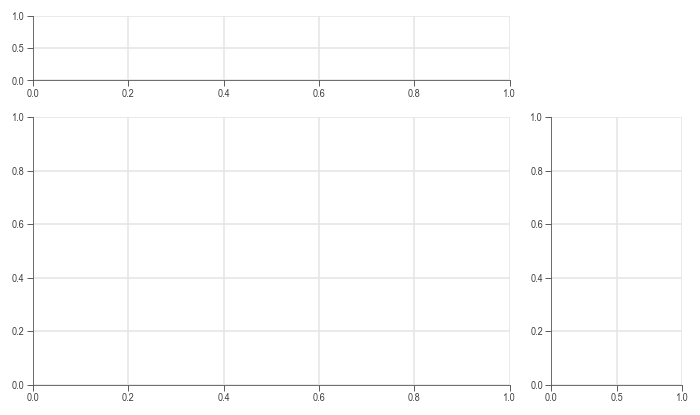
Use nrows, ncols, width_ratios, and height_ratios for structured grids:
import daspi as dsp

axes = dsp.AxesFacets(
    nrows=2, ncols=2, width_ratios=[3, 1], height_ratios=[1, 3])
Option 2: Mosaic Layout
Use the mosaic argument for flexible, custom layouts:
Both approaches provide the same basic layout, but mosaic offers more flexibility — the '.' character tells Matplotlib to leave that space empty.
Combining approaches:
Accessing Individual Axes
Access your subplots using:
- Single index (flat list): axes[1]
- Tuple notation (numpy-style): axes[-1, 0]
AxesFacets also works as an iterator, allowing you to loop through axes from top-left to bottom-right.
StripesFacets
StripesFacets adds reference lines and shaded areas to your plots — essential for showing specification limits, control limits, confidence intervals, or baseline statistics.
Use Case: Compare data across multiple subplots where each subplot shows the same analysis for different categories. Reference lines make patterns and differences immediately visible.
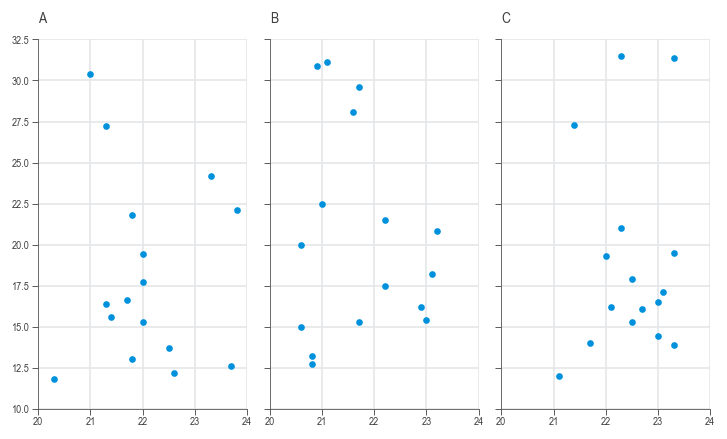
Let's see this with painkillers dissolution data. First, without stripes:
import daspi as dsp
import matplotlib.pyplot as plt

df = dsp.load_dataset('painkillers-dissolution')

fig, axes = plt.subplots(
    nrows=1, ncols=df['employee'].nunique(), sharex=True, sharey=True)

for ax, (name, group) in zip(axes, df.groupby('employee')):
    ax.scatter(group['temperature'], group['dissolution'])
    ax.set_title(str(name))
Now with stripes added:
import daspi as dsp
import matplotlib.pyplot as plt

df = dsp.load_dataset('painkillers-dissolution')

fig, axes = plt.subplots(
    nrows=1, ncols=df['employee'].nunique(), sharex=True, sharey=True)

for ax, (name, group) in zip(axes, df.groupby('employee')):
    stripes = dsp.StripesFacets(
        group['dissolution'],
        target_on_y=True,
        single_axes=False,
        mean=True,
        confidence=0.95,
        spec_limits=dsp.SpecLimits(upper=25))
    ax.scatter(group['temperature'], group['dissolution'])
    ax.set_title(str(name))
    stripes.draw(ax)
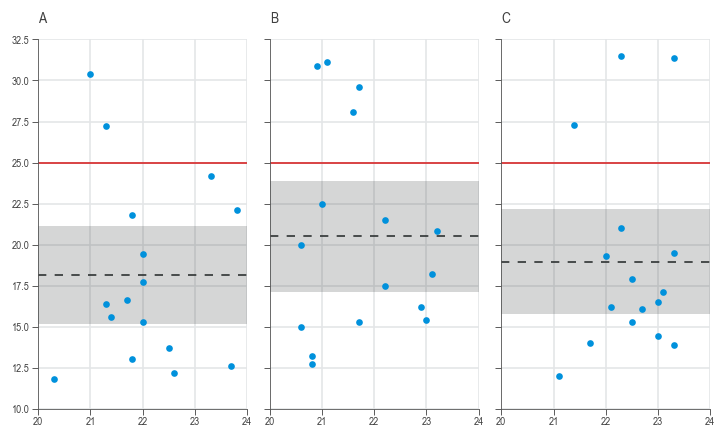
Now you can instantly identify which employee's tablets are exceeding dissolution time limits.
Alignment Requirement
When using StripesFacets across multiple subplots, set sharey=True so reference lines align properly.
LabelFacets
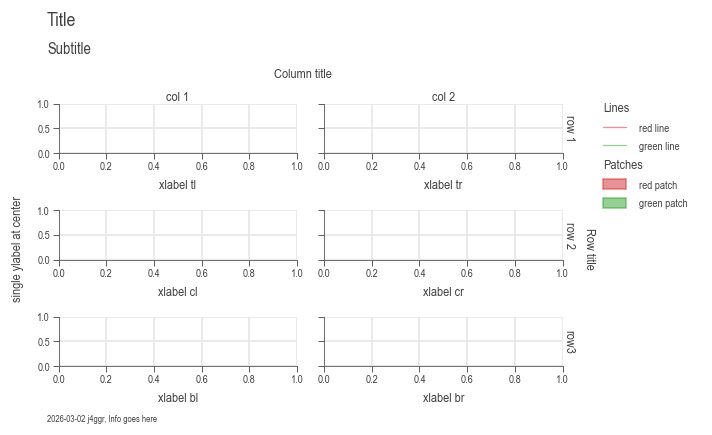
LabelFacets handles all text elements that make your plots publication-ready: titles, subtitles, axis labels, legends, and annotation boxes.
A key feature: it automatically adjusts subplot spacing to prevent text overlap, eliminating manual margin adjustments.
from matplotlib.lines import Line2D
from matplotlib.patches import Patch

axes = dsp.AxesFacets(nrows=3, ncols=2, sharey=True)

legend_data={
    'Lines': [
        (Line2D([0], [0], c='r'), Line2D([0], [0], c='b')),
        ('red line', 'blue line')],
    'Patches': [
        (Patch(color='r'), Patch(color='b')),
        ('red patch', 'blue patch')]},

labels = dsp.LabelFacets(
    axes,
    fig_title='Title',
    sub_title='Subtitle',
    xlabel=('xlabel tl', 'xlabel tr', 'xlabel cl', 'xlabel cr', 'xlabel bl', 'xlabel br'),
    ylabel='single ylabel at center',
    info='Info goes here',
    cols=('col 1', 'col 2'),
    col_title='Column title',
    rows=('row 1', 'row 2', 'row3'),
    row_title='Row title',
    legend_data=legend_data)
labels.draw()
Bringing It All Together
Let's create a complete, professional-looking analysis by combining all three facet classes. We'll revisit our painkillers dissolution example and make it publication-ready:
import daspi as dsp

df = dsp.load_dataset('painkillers-dissolution')

# Create the subplots layout
axes = dsp.AxesFacets(
    nrows=1, ncols=df['employee'].nunique(), sharex=True, sharey=True)

# Draw the stripes and plot data
for ax, (name, group) in zip(axes, df.groupby('employee')):
    stripes = dsp.StripesFacets(
        group['dissolution'],
        target_on_y=True,
        single_axes=False,
        mean=True,
        confidence=0.95,
        spec_limits=dsp.SpecLimits(upper=25))
    ax.scatter(group['temperature'], group['dissolution'])
    stripes.draw(ax)

# Add professional labeling
legend_data = {'Lines': stripes.handles_labels()}

labels = dsp.LabelFacets(
    axes,
    fig_title='Painkillers Dissolution Analysis',
    sub_title='Dissolution time ~ temperature + employee',
    xlabel='Temperature (°C)',
    ylabel='Dissolution time (s)',
    info='Mini-project from the Six Sigma Black Belt training',
    cols=tuple(df['employee'].unique()),
    col_title='Employee',
    legend_data=legend_data)
labels.draw()
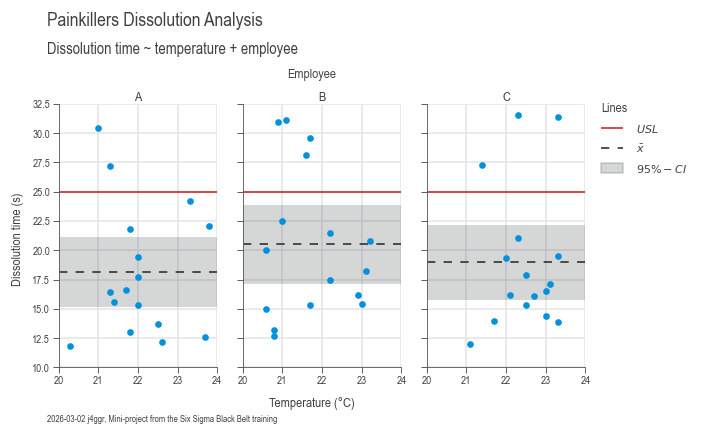
Professional analysis in just a few lines of code.
Plotters
Plotters are the core visualization components in DaSPi. Each plotter class creates a specific type of mark (scatter, line, box plot, etc.) and can be combined to build complex analyses.
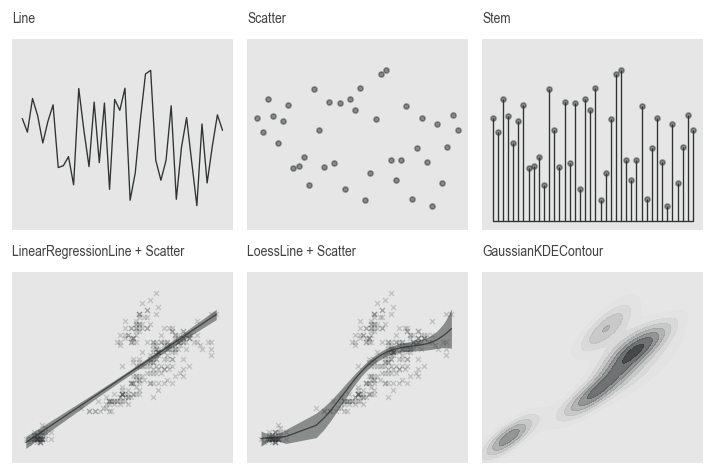
Bivariate (XY) Plots
Bivariate plotters explore relationships between two variables. Essential parameters:
source: Your DataFrametarget: The Y-axis variable (response)feature: The X-axis variable (predictor)
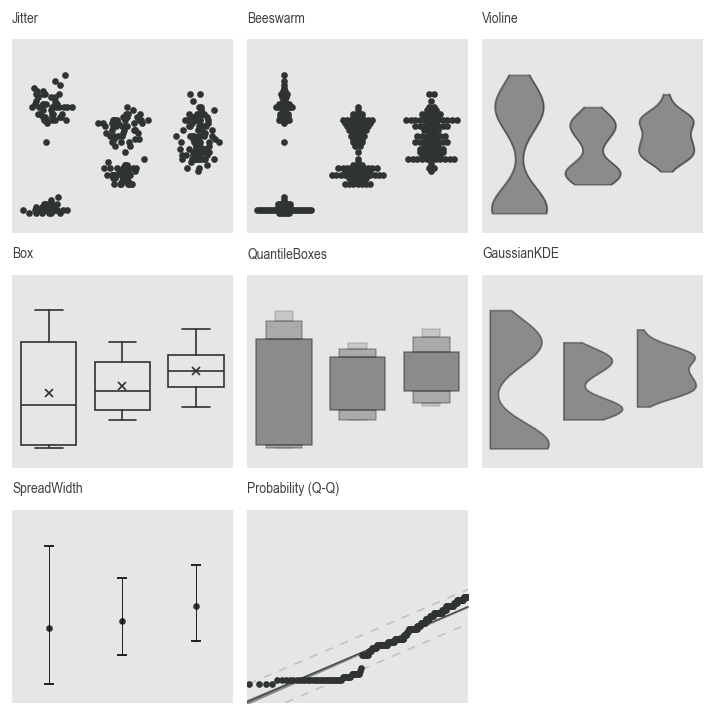
Univariate (Distribution) Plots
Univariate plotters analyze single variables, revealing distribution shape, center, and spread.
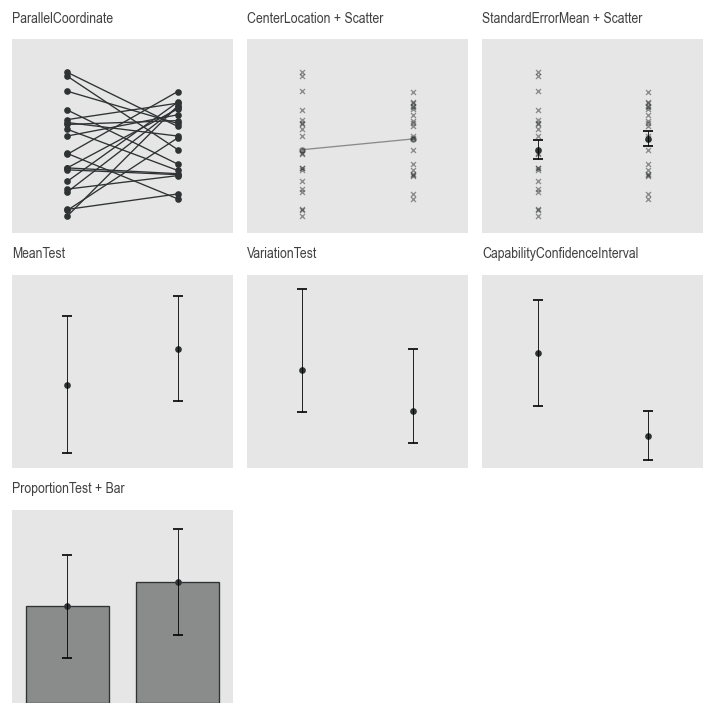
Plots for Differences
Comparison plotters excel at highlighting differences between groups and categories — essential for hypothesis testing and root cause analysis.
Special Plots
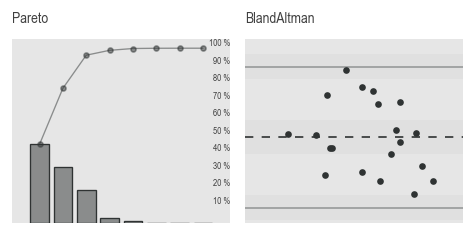
Specialized plotters for specific analytical needs including capability analysis, measurement system analysis, and advanced statistical visualizations.
Charts
Chart classes provide a high-level interface that combines facets and plotters into a streamlined workflow. They handle setup automatically while maintaining full customization capabilities.
The Chart Family
DaSPi provides three chart classes for different visualization needs:
- SingleChart — Single plot area for focused analysis
- JointChart — Combined marginal and joint distributions
- MultivariateChart — Complex multi-panel layouts
Architecture
Chart classes are smart wrappers around facet classes (AxesFacets, StripesFacets, and LabelFacets), providing a simplified interface for working with plotters.
Key advantage: you can layer multiple plotters by calling plot() repeatedly with different plotter classes. Each plotter adds marks to the same axes, enabling sophisticated composite visualizations.
Typical Workflow
- Create chart — AxesFacets instantiated automatically
- Add plots — Call
plot()one or more times with different plotters - Add reference lines — Call
stripes()to add specification or control limits - Add labels — Call
labels()for titles, legends, and annotations - Save — Call
save()to export
Method Order
The labels() method must be called last (before save()). Other methods can be called in any order.
Method Chaining
All chart methods return self, enabling fluent method chaining:
This creates readable, compact code that clearly expresses the visualization workflow.
SingleChart
SingleChart provides a single plot area for focused analysis. Let's recreate the painkillers example using the chart interface:
import daspi as dsp

df = dsp.load_dataset('painkillers-dissolution')

chart = dsp.SingleChart(
        source=df,
        target='dissolution',
        feature='employee',
        hue='brand',
        dodge=True,
    ).plot(
        dsp.Beeswarm
    ).plot(
        dsp.CenterLocation,
        show_line=True,
        show_center=False,
    ).plot(
        dsp.MeanTest,
        marker='_',
        kw_center={'size': 100}
    ).stripes(
        mean=True,
        confidence=0.95
    ).label(
        fig_title='Painkillers Dissolution Analysis',
        sub_title='Dissolution time vs. Employee, Brand, and Stirrer',
        target_label='Dissolution time (s)',
        feature_label='Employee',
        info=True
    )
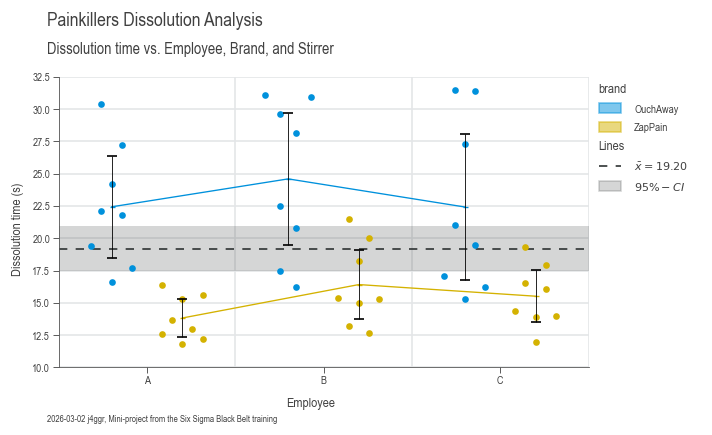
The result? A professional-looking plot that would make any data scientist proud! 📊